
LET'S SET UP G-SUITE
This guide will walk you through the process of connecting Cloud Access Monitor to your G-Suite domain.
ONLY RUN THE SETUP ONE TIME, USER CREDENTIALS WILL BE EMAILED 10-20
MINUTES AFTER SETUP IS COMPLETED.
Note: Google "SUPER ADMIN" account required for activation.
Please WHITELIST no-reply@managedmethodsdev.com as a trusted sender. This address is used to send login credentials and policy violation emails.
STEP ONE:
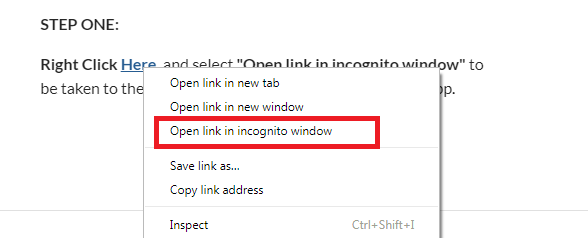
Right Click Here and select "Open link in incognito window" to be taken to the ManagedMethods G-Suite Marketplace app.
Note: Incognito window not required. Ensure account completing install is "Super Admin".
STEP TWO:
Click the Admin Install button in the top right.
STEP THREE:
Sign in to your company domain as an administrator,The ManagedMethods app will ask for permission. Click continue and Accept the required permissions for installation.
**NOTE: Select Everyone at your organization.
STEP FOUR:
Click Here to continue.
STEP FIVE:
When the Google Accounts account authorization screen appears, select your administrative account, and click allow. You will be redirected to the Cloud Access Monitor setup page.
STEP SIX:
Enter your Administrative E-mail, as well as the Server URL provided in your Activation E-mail, and select Register.
STEP SEVEN:
Activation is complete! A member of our support team will review the activation, and will e-mail login instructions once the installation is verified.
Note: Business Hours are M-F, 8:30 to 5:30 Mountain time. Activation's outside of business hours will be addressed the following day.
Comments
0 comments
Please sign in to leave a comment.